Final Update for 2025
Welcome to our final update for 2025. It’s been an incredible year for the Rave team, and we’ve truly enjoyed sharing our monthly updates with you along the way.
As we look ahead, 2026 is already shaping up to be a huge year, and we can’t wait to bring you along for what’s next.
Keeping it short and sweet below is a round-up of our favourite updates from this month.
Calendar Syncing
As part of our ongoing updates to the new calendar syncing we have added colour coding via Categories for Office 365 calendars and Colours for Google. We have also updated the Project and Enquiry Calendar view to show busy times when booking appointments from the calendar.
To learn more about Calendar Syncing for Microsoft 365 click here. For Google click here.
To learn how to add a CRM activity with calendar syncing click here. For Project click here.

CRM
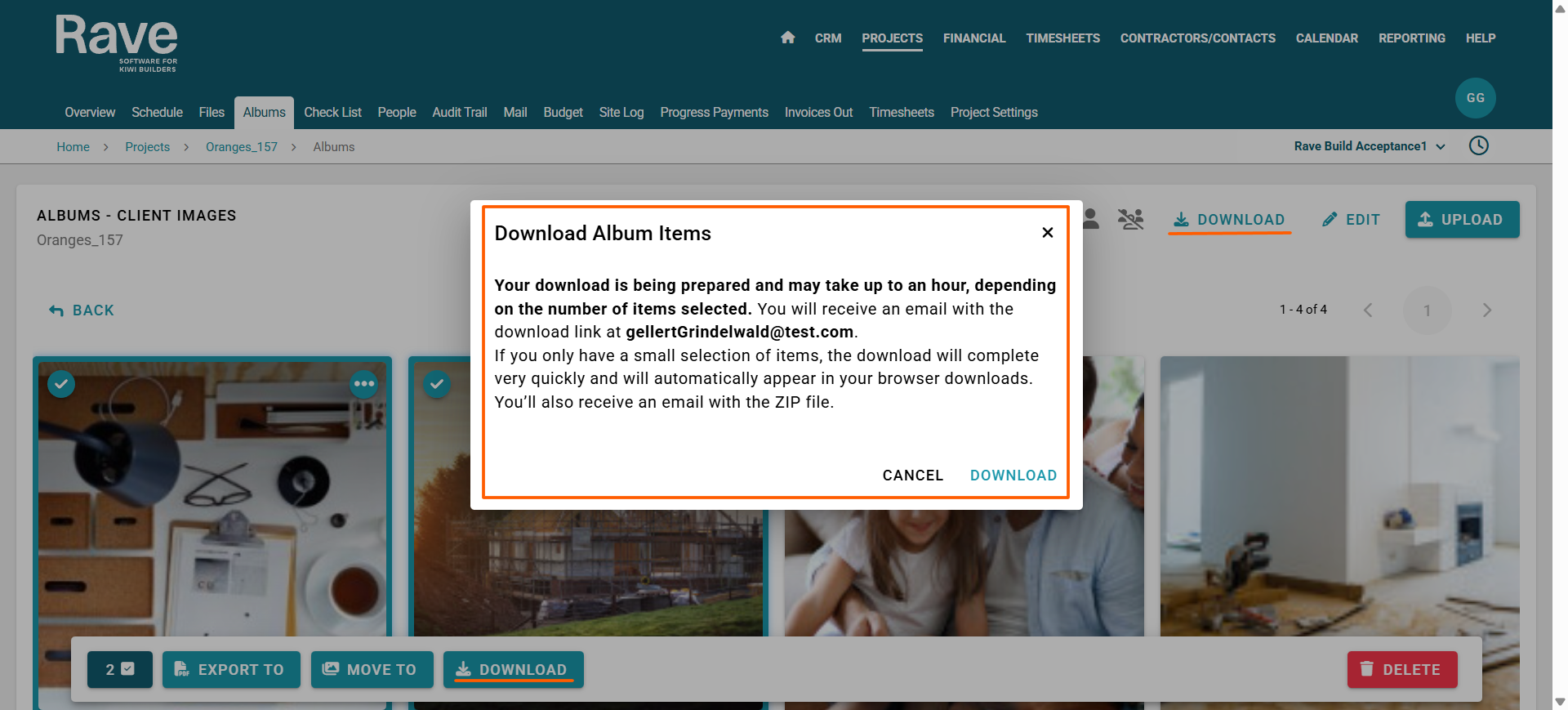
As part of our new Email Syncing feature which is coming early 2026, we have upgraded what was previously known as Messages to Mail. In addition to a refreshed look and feel, the Mail area now includes enhanced functionality designed to improve communication and streamline workflows. The first update is for our CRM system is live now. To read more about the new Mail updates click here for the help article. To read about the new template options for Mail click here for the help article.
The Projects update for Mail is coming January 2026.
Permissions
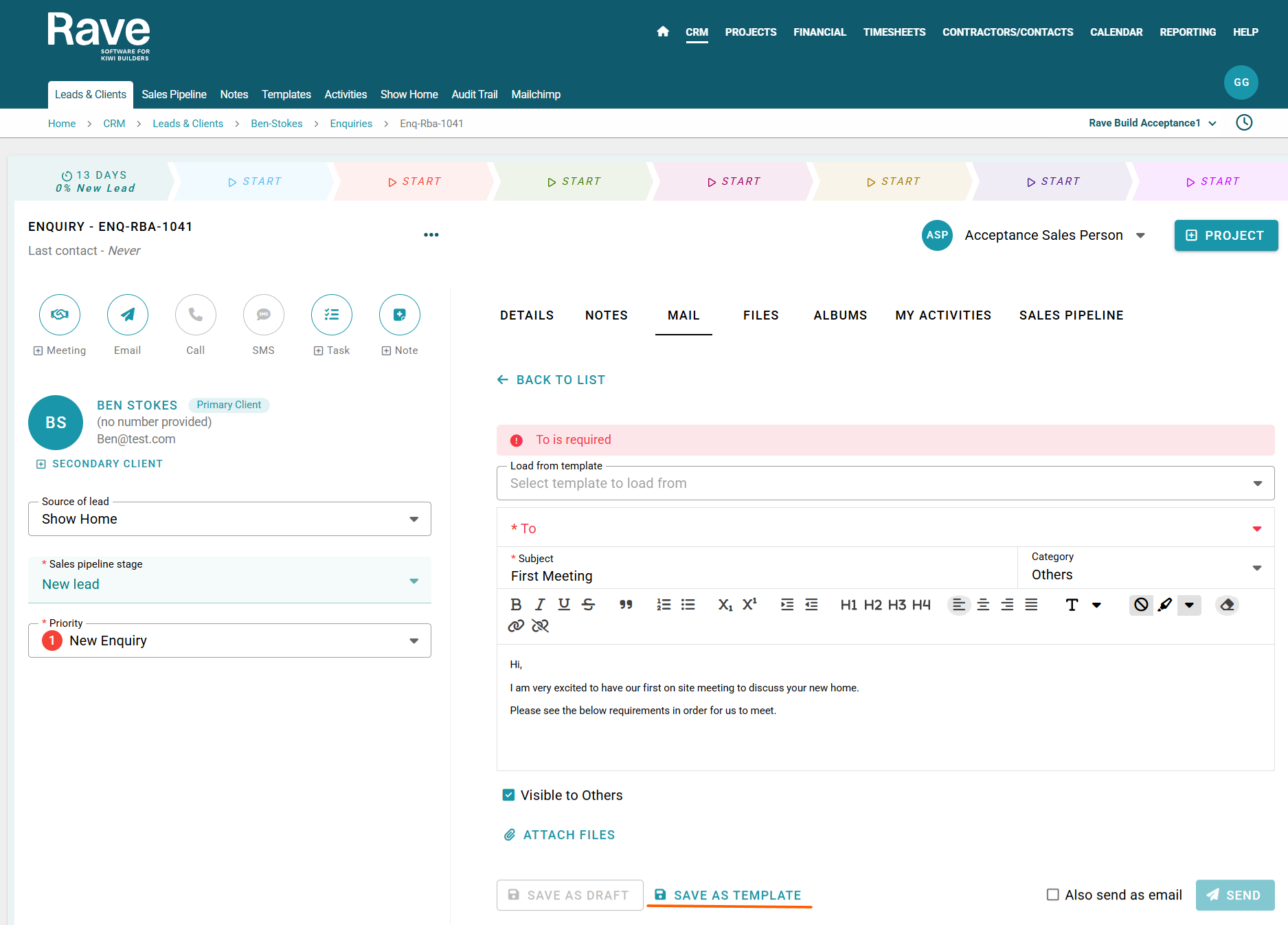
For Financial Management users we’ve added two new notification settings in your profile notification settings to keep you informed about your estimates and variations:
- Estimate/Variation Approved by Client: Get notified as soon as a client approves an estimate or variation you created.
- Estimate/Variation Declined by Client: Receive alerts when a client declines an estimate or variation you submitted.
You can turn these on at a profile level and then override specific projects to be on or off. These updates make it easier to track client responses and keep your projects moving smoothly.
To read about Profile Notifications click on the help article here.
Projects
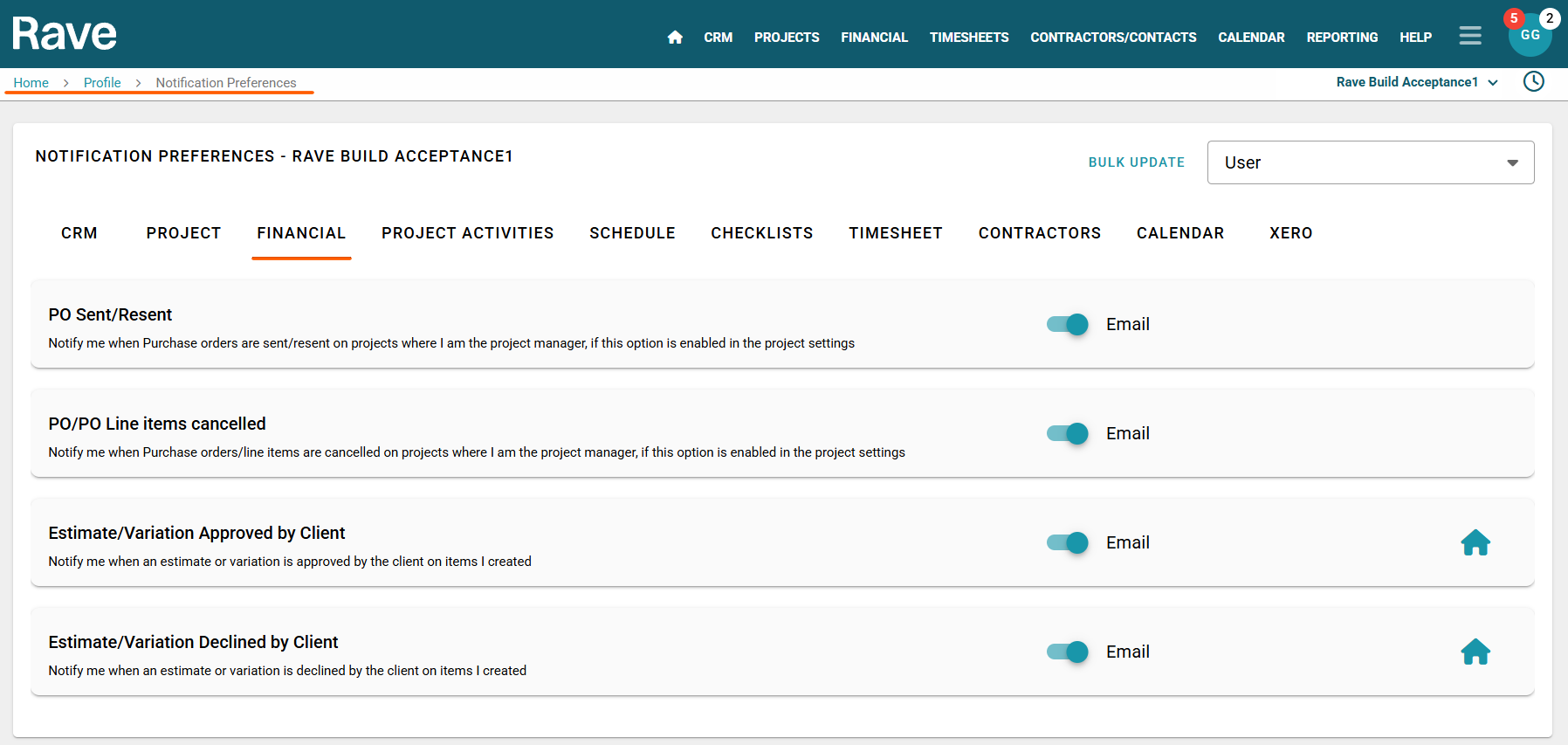
You can now bulk or single-select and download images from albums within a project or CRM Enquiry.
The options are all items from all albums, all items from selected albums, all items from a specific album or selected items from a specific album.
The selected images will be packaged into a ZIP file and emailed to you once the download is ready. The email containing the ZIP file expires after 24 hours.
If you only have a small selection of items, the download will happen very quickly and will automatically appear in your browser downloads. You’ll also receive an email with the ZIP file.
To read about Bulk Album item downloads click on the help article here for project or here for CRM enquiry.
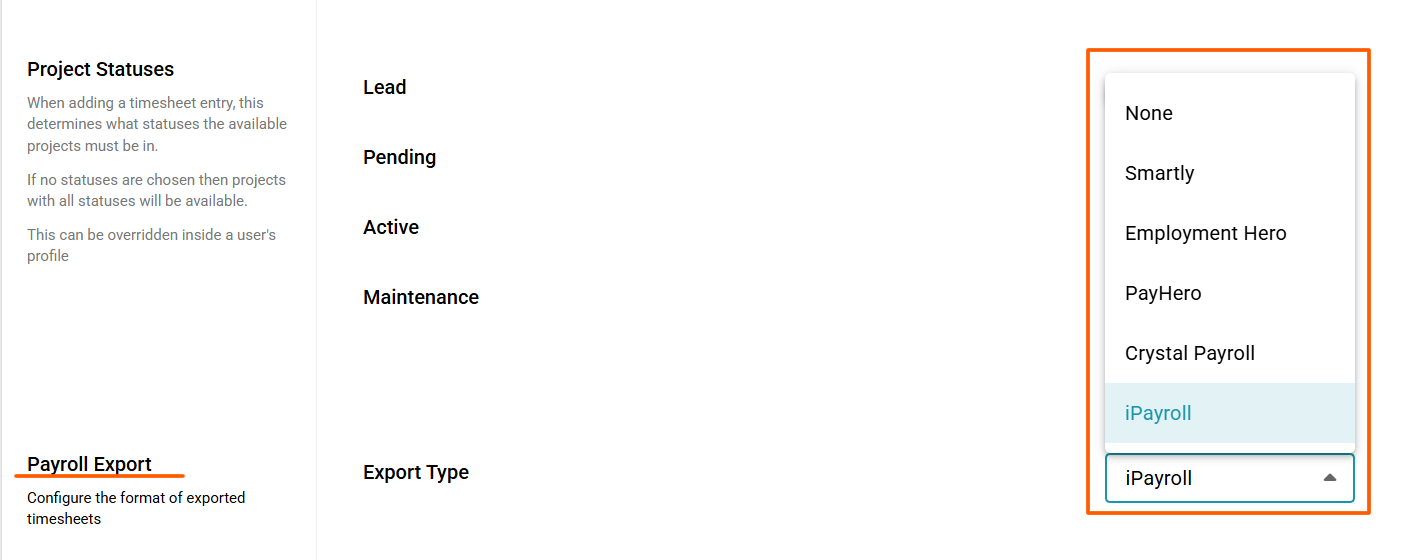
Rave offers Payroll-compatible exports from our Advanced Timesheets module. The options are Employment Hero, Crystal Payroll, Pay Hero, Smartly and now iPayroll.
Or you can export to a standard CSV file to copy and paste into other payroll systems.
To read about our ipayroll update or other payroll exports click on the help article here.
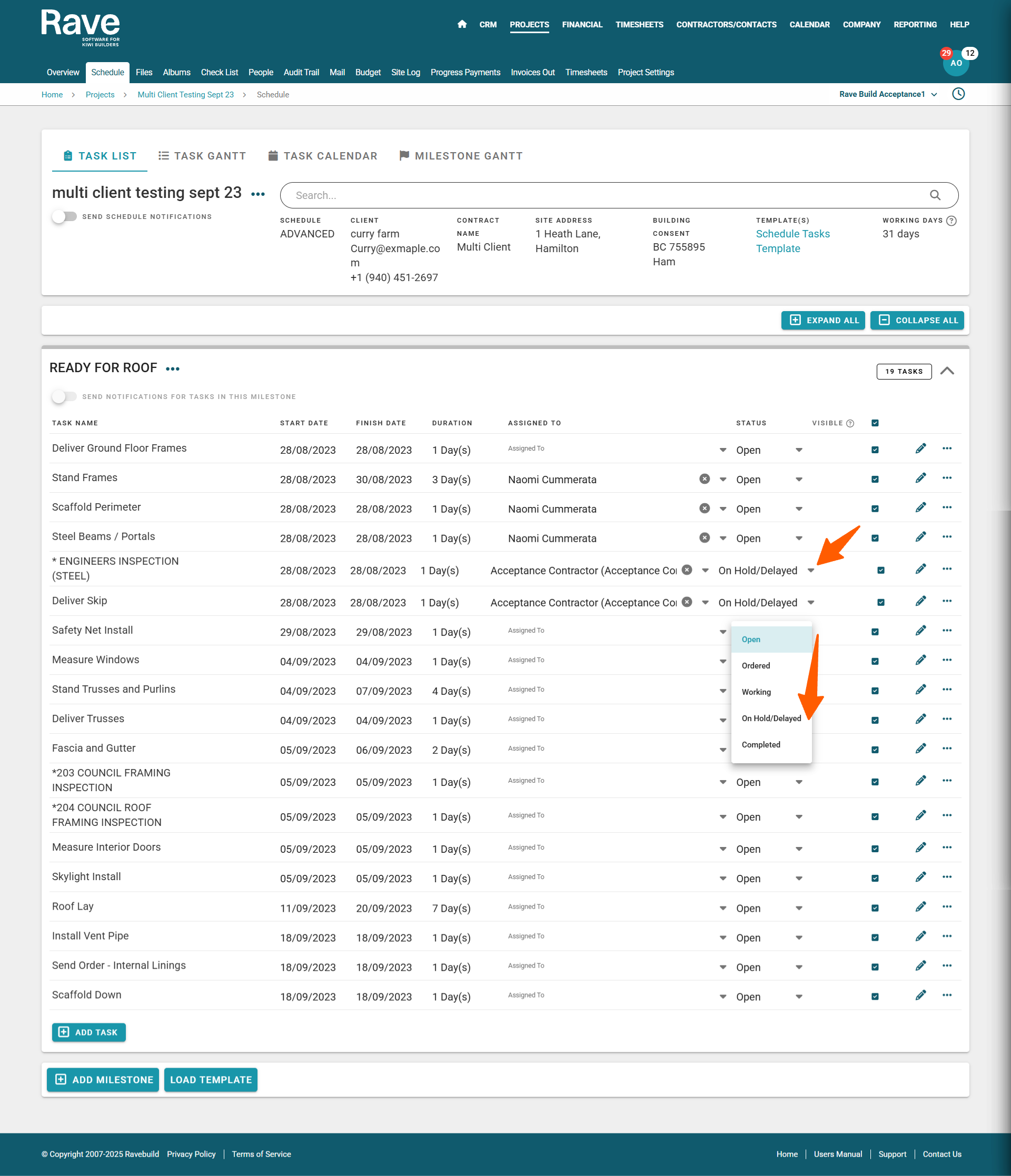
We have added a new 'On Hold/Delayed' task status to Rave Scheduling, which allows project managers, and those with schedule editing permissions, to inform their team, and anyone with access to the task, that the task is on hold or delayed.
To Read about our Schedule Status options click on the help article here.
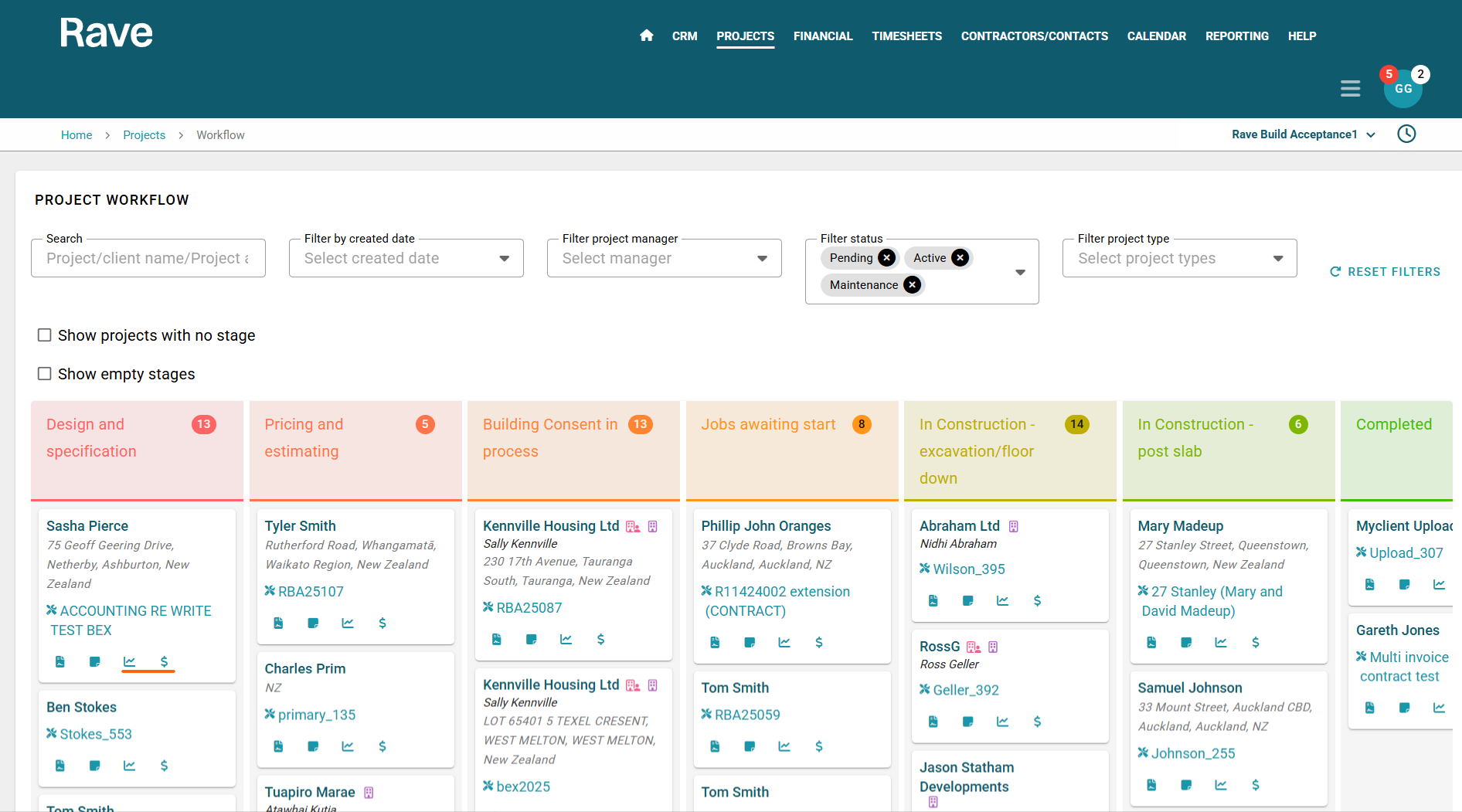
Project Workflow has had an update. Where a schedule has been added we have a shortcut to the schedule from the workflow view. For our Financial Clients there is a short-cut to Financial from the workflow view. The shortcut will land on the first Financial tab the user has access to.
To read more about the Project Workflow click here for our help article.
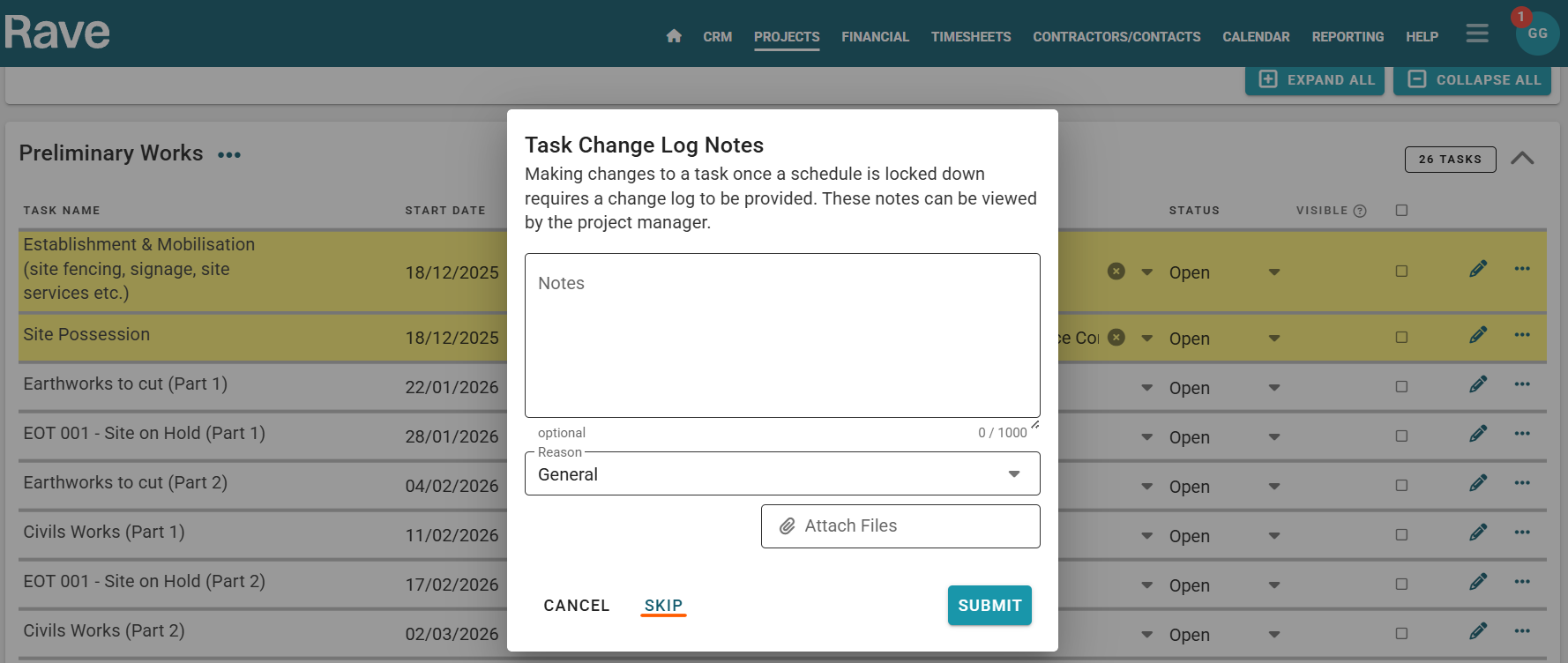
We’ve added both branch-level and project-level permissions to make schedule date change reasons optional.
When the schedule baseline is locked, you can now choose whether providing a reason is mandatory or optional for both gaining time or losing time.
If set to optional, users can simply press Skip and proceed without entering a reason.
To read how to set these options at Branch Level click here and to override the settings per project click here
Financial
Project Financial reports: The Cost to complete column on your Charge Up Report shows the remaining balance for your clients to pay, based on their client invoices vs estimate.
You can now manually adjust your cost to complete by setting it to any value equal to or less than the calculated amount, zero it out, or recalculate at any time.
Pro tip: For Sub-Categories, adjust each one individually to update the main total automatically.
To read more about the Charge Up Report with Category and Sub-Category Cost to Complete click here for the help article.
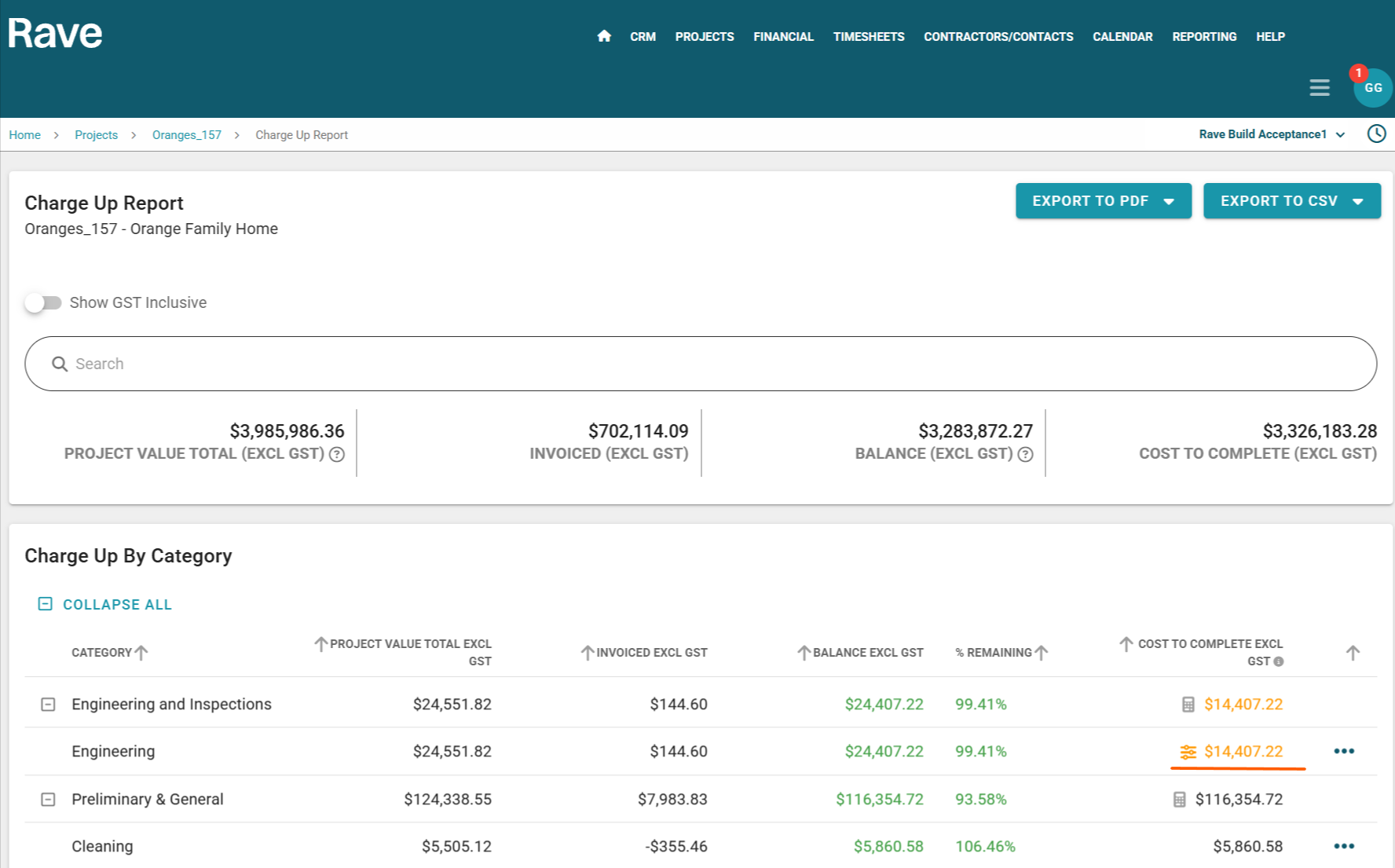
Project Financial reports: The Cost to Complete column on your Project Profitability Report shows the remaining cost to finish your project, based on your bills vs quotes and overspend. You can now manually adjust your cost to complete by setting it to any value equal to or less than the calculated amount, zero it out, or recalculate at any time.
Pro tip: For Sub-Categories, adjust each one individually to update the main total automatically.
To read more about the Profitability Report with Category and Sub-Category Cost to Complete click here for the help article.

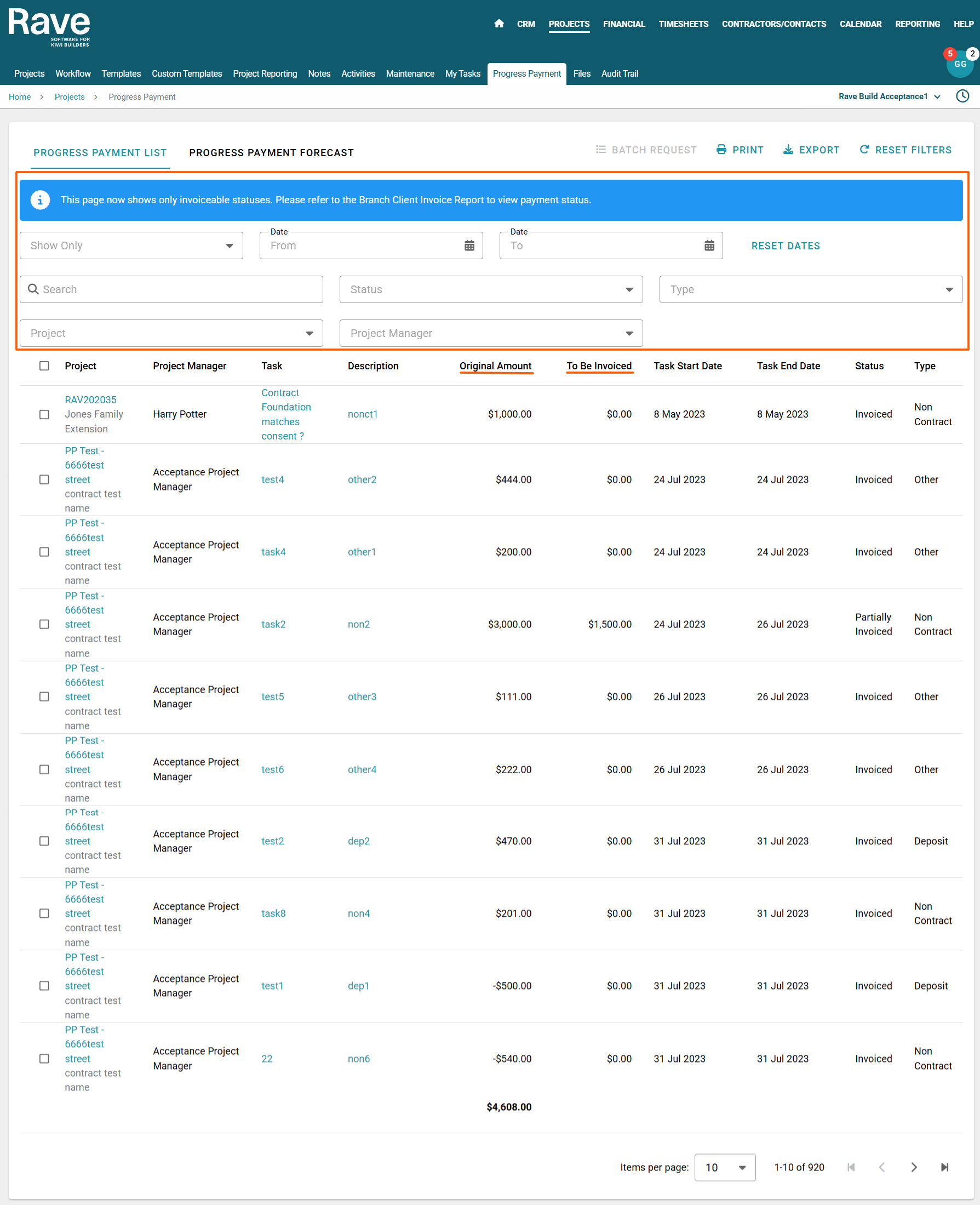
The Progress Payment List page will now include two new columns: Original Amount, which shows the initial agreed amount for each progress payment, and To Be Invoiced, which displays the remaining balance yet to be invoiced.
To read more about the Progress Payment List page click here for the help article.
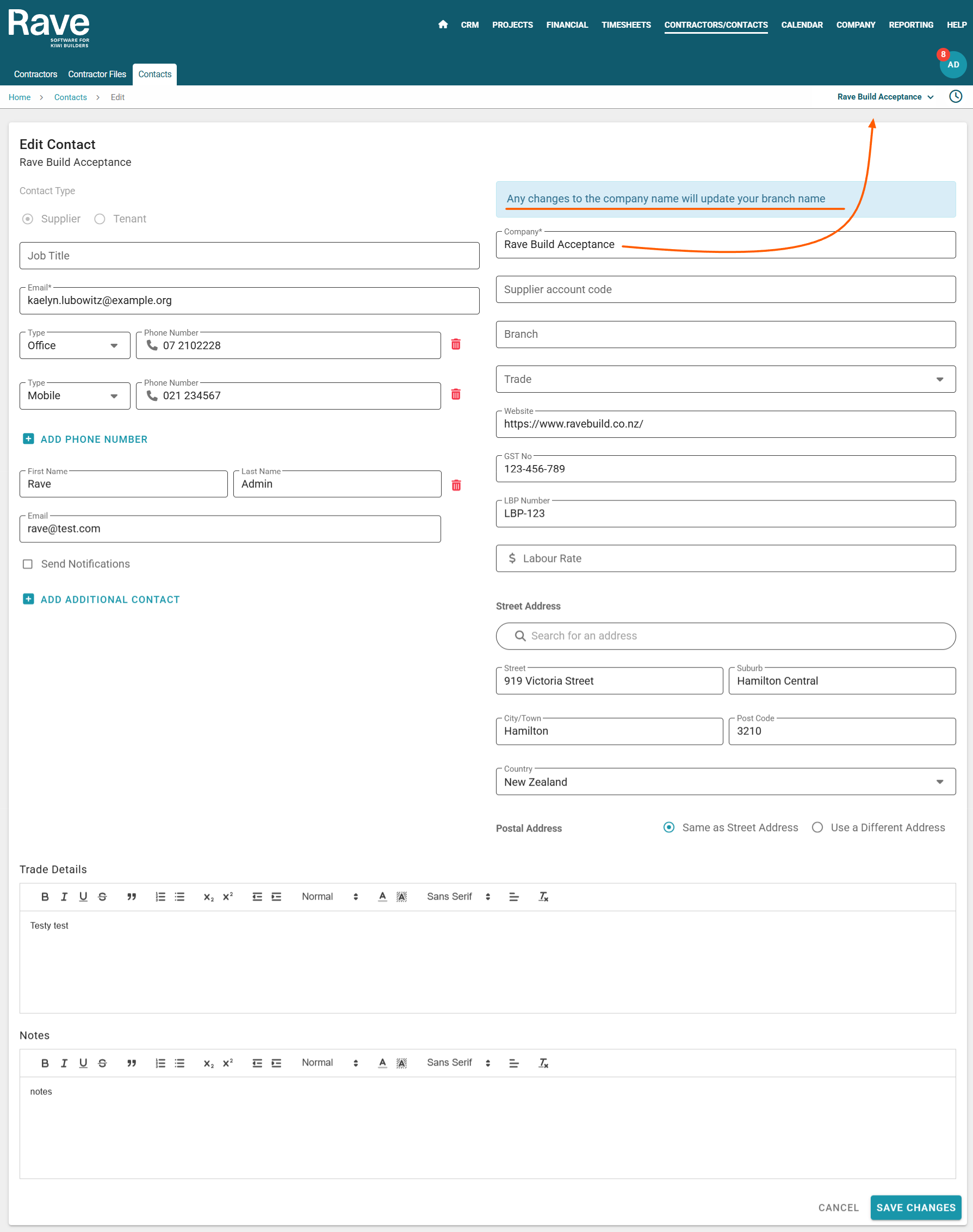
Users with Financial Management enabled will have an internal branch contact automatically created under the Supplier tab. This contact can be used to create internal Quotes, Purchase Orders, and Bills. You now have the ability to edit certain fields for this internal contact.
To read more about the Internal Branch Contact click here for the help article.